Malware samples can be a useful tool when testing an antivirus API - but handling live malware is genuinely dangerous. This guide covers everything you need to know: from safe test files for most developers, to a purpose-built, hardened environment for those who need the real thing.
Table of contents
- Table of contents
- Who This Guide is For
- Start Here: The EICAR Test File
- Why You Might Need Real Malware Samples
- The Dangers of Handling Live Malware
- Architecture Overview
- Setting Up the Host
- Creating the Sandbox Virtual Network
- Setting Up Shared Directories
- Creating the Sandbox VM
- Configuring the Sandbox VM
- Locking Down the Network
- Sourcing Malware Samples
- End-to-End Workflow
- Interpreting the API Response
- Closing Thoughts
Who This Guide is For
If you’re building a file upload feature and want to verify that your integration with Verisys Antivirus API works correctly before going to production, you’ve come to the right place. But before we go any further, we need to split this audience in two.
-
The vast majority of developers testing an antivirus integration don’t need live malware at all. The EICAR test file - a purpose-built, universally recognised test vector - is all you need to validate that your API calls are correctly wired up, that malware detections are returned and handled properly, and that your application behaves as expected when a threat is found. If that’s you, jump straight to Start here: the EICAR test file.
-
A small number of developers (such as those working in dedicated security roles, or researchers building specialised tooling) may legitimately need to work with real samples. The rest of this guide is written for you. But be warned: this is not a casual undertaking - here be dragons! Handling live malware without proper precautions can compromise your machine, your network, and potentially your colleagues’ machines too.
Start Here: The EICAR Test File
The EICAR Anti-Malware Test File is the industry-standard way to test antivirus integrations without handling real malware. It was created in the 90s as a collaboration between antivirus vendors, and virtually every antivirus engine recognises it as a test threat and returns a detection.
It’s a completely harmless plain text file containing exactly this string:
|
|
Despite containing no actual malicious code, every major antivirus engine flags it. It’s entirely harmless - your machine is not at risk. But it lets you exercise the full detection path in your integration with confidence.
You can download it directly from EICAR’s website, or you can simply create the file yourself by copying the string above into a new file and save it with any extension (.com, .txt, or anything else).
To scan it with Verisys Antivirus API:
|
|
You should receive a response something like this:
|
|
A status of threat and the signal Virus:EICAR_Test_File tells you everything is working as intended. If you see this, your integration is correctly passing files to the API and receiving threat detections back. That’s all you need to scan real malware too.
You can also scan the EICAR file by URL, without downloading it at all:
|
|
If you’re satisfied that EICAR meets your needs, you’re done - and your machine is safer for it. The rest of this guide covers the small number of scenarios where real malware samples are necessary - only proceed if you have a clear, justified need to work with real malware samples.
Why You Might Need Real Malware Samples
For the vast majority of file upload integrations, EICAR is sufficient. But there are legitimate reasons a developer might need to work with real samples:
- Detection rate validation: verifying that the API correctly detects a specific malware family or strain relevant to your threat model.
- Edge case testing: testing API behaviour with unusual file types, packed executables, or polyglot files that embed malicious payloads.
- QA pipeline stress testing: building a comprehensive test corpus that exercises multiple threat categories - ransomware, trojans, infostealers, and so on - to validate detection across the board.
- Security research tooling: building infrastructure that processes, classifies, or routes malware samples as part of a broader security product.
If any of these apply to you, continue reading - but proceed cautiously.
The Dangers of Handling Live Malware
Let’s be direct about what you’re dealing with. Unlike the EICAR file, real malware is not inert - it is specifically designed to execute, propagate, and cause harm. Even if your intention is only to upload a file to an API for scanning, the risks are real:
-
Accidental execution: Double-clicking, previewing, or opening a file in the wrong application can trigger execution. Modern operating systems have many automatic file-handling behaviours - thumbnail generation, indexing, preview pane rendering - that can invoke malicious payloads without any deliberate action on your part.
-
Network propagation: Some malware families - worms in particular - are designed to scan the local network and spread to reachable hosts automatically upon execution. If your machine is connected to a shared network, a single accidental execution can cascade rapidly.
-
Lateral movement: Many modern malware strains include persistence mechanisms, credential harvesting, and lateral movement capabilities. If a sample executes on a machine with access to shared drives, password managers, or cloud sync folders, the damage can extend far beyond the original machine.
-
Legal and policy risk: Depending on your jurisdiction, possessing certain malware samples may carry legal implications. Always ensure you’re operating within the law and within your organisation’s acceptable use policies.
-
Human error: This is, honestly, the most common risk. Experienced security researchers have accidentally executed malware despite knowing better. Fatigue, distraction, and familiarity all contribute. A robust environment doesn’t just protect against malware - it protects against you!
The Upload-Only Advantage
Here’s the key insight that most general malware handling guides miss: if your goal is only to upload a sample to an API, your risk profile is dramatically lower than a malware analyst’s.
A malware analyst needs to execute samples, observe runtime behaviour, capture network traffic, and interact with live processes. That requires a fundamentally different (and far more complex) containment strategy.
You don’t need any of that. Your workflow is:
- Download the sample (remember that by convention, samples are compressed and password-protected)
- Extract the sample in an isolated environment
- Upload the file to the API via
curl - Observe the response
- Delete the sample
You never execute anything. This means the primary risk is accidental execution, which a combination of isolation, careful tooling choices, and good habits can mitigate effectively.
Architecture Overview
The environment we’ll build has two components: a dedicated physical host running Linux, and a sandbox virtual machine running inside it. The key design principle is a clean separation of responsibilities.
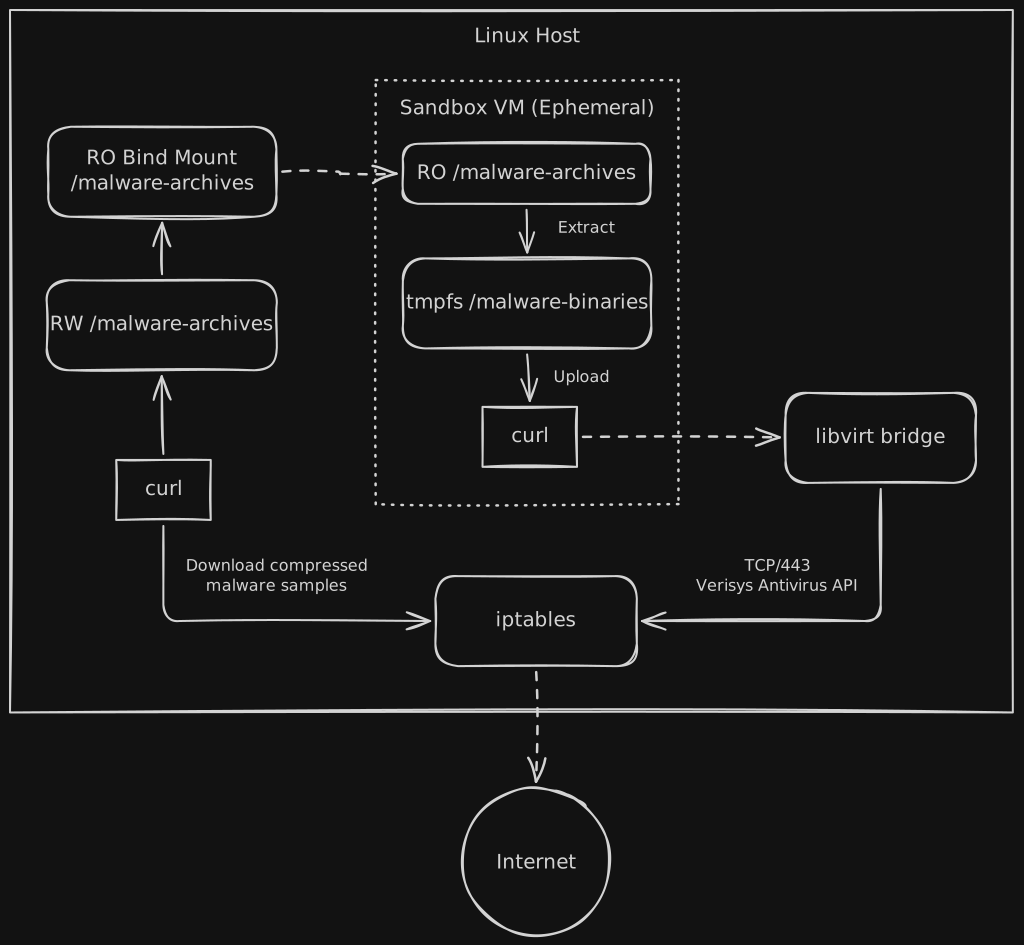
The host is responsible for downloading compressed, password-protected malware archives from the internet. It stores them in /malware-archives, a bind-mounted directory with noexec and nosuid flags. The host never extracts or uploads these encrypted archives - it only ever downloads them to disk - so the risk of accidental execution on the host is greatly reduced.
The sandbox VM is responsible for extracting archives and uploading the resulting files (typically binaries) to Verisys Antivirus API. It can see the host’s /malware-archives as a read-only virtiofs mount - it can read archives, but cannot modify or add to them. Extracted binaries are stored in /malware-binaries, a tmpfs RAM disk inside the sandbox with noexec flags. Crucially, the sandbox VM’s network access is permanently and significantly locked down: it can make outbound TCP/443 connections to exactly one IP address - your chosen Verisys Antivirus API endpoint - and nothing else. It cannot reach the internet, your local network, or any other host.
This separation ensures that the two critical risk factors - extracted malware binaries and internet access - never coexist in the same environment. The host retains internet access, but never encounters the extracted binaries; the sandbox VM holds the malware binaries but has no meaningful network connectivity.
The sandbox VM is also intended to be ephemeral; that is, temporary in nature. Every time the malware upload workflow is required, the sandbox VM is restored from a clean-state snapshot, and is then discarded afterwards. This means that malware binaries will only live for as long as needed, and even then, they will only exist on a RAM disk inside a disposable virtual machine.
What You’ll Need
To follow this guide, you will need:
- A dedicated physical host, separate from your day-to-day machine. An old laptop or desktop works fine. Running a Linux host OS means that most Windows-targeted malware will not execute even if it somehow escapes its VM - it simply has no runtime to attach to
- At least 4GB RAM on the host (we’ll allocate just 2GB for the sandbox VM OS)
- At least 40GB disk on the host (we’ll allocate 16GB for the sandbox VM disk)
- Hardware virtualisation support (Intel VT-x or AMD-V) - verified during host setup
Setting Up the Host
Use a minimal, up-to-date Linux distribution for your host - Ubuntu Server LTS or Debian are good choices, and indeed we used Ubuntu Server 24.04 LTS here for this guide. There is no need to install a desktop environment, as a console is enough for our needs - this also helps reduce the attack surface. During installation you will be prompted to enter a username for a non-root account - in this guide we’ve used ops as that user.
Once the host OS is installed, install KVM/QEMU and the management tools you’ll need:
|
|
Importantly, verify that the host hardware supports virtualisation:
|
|
Download an ISO for the sandbox VM’s guest OS - just like our host, we’ll stick with Ubuntu Server LTS:
|
|
Creating the Sandbox Virtual Network
The sandbox VM needs a dedicated virtual network, isolated from your main network. libvirt will NAT the VM’s traffic through the host - in a later step, we’ll use iptables to lock down exactly what the VM can actually reach.
Create a network definition file for a libvirt network bridge named virbr-sandbox:
|
|
The DHCP entry with a fixed MAC address (52:54:00:10:24:24) ensures the sandbox VM always gets the same IP (192.168.100.10). We’ll use this same MAC when creating the sandbox VM, and the fixed IP is what we’ll later target with iptables rules to lock down network access.
Define, start, and persist the virtual network:
|
|
Setting Up Shared Directories
The host needs a directory to hold compressed, encrypted malware archives, and the sandbox VM needs a read-only view of that same directory. We use bind mounts to create both - one for host use, one specifically for sharing into the VM.
|
|
Make both mounts persistent by adding them to /etc/fstab:
|
|
Verify both mounts are in place:
|
|
You should see output something like this:
|
|
The reason for two separate mounts (rather than sharing the backing directory directly) is defence in depth: the host uses /malware-archives for its own operations; the sandbox VM receives only the dedicated read-only path. libvirt’s virtiofs shares a directory from the host into the guest - by pointing it at the read-only bind mount rather than the live backing directory, we get kernel-level enforcement of the read-only constraint inside the VM, not just filesystem permissions.
Creating the Sandbox VM
With the network and shared directories in place, we are now ready to create the sandbox VM. We pass the read-only malware-archives directory in at creation time using a virtiofs filesystem share:
|
|
A few flags worth noting:
--network mac=52:54:00:10:24:24: matches the fixed DHCP entry in the network definition, ensuring the VM always gets IP192.168.100.10.--filesystem driver.type=virtiofs: virtiofs is a high-performance virtio-based filesystem protocol for sharing host directories into guests. It requires--memorybacking access.mode=shared,source.type=memfd, which enables the shared memory backend virtiofs needs.--graphics=none: no VNC or SPICE surface is created; there is no clipboard or drag-and-drop channel to act as an escape vector.--location: if using a different Linux distribution other than Ubuntu Server LTS, you will need to change this value accordingly
Follow the on-screen prompts to install Ubuntu Server in the guest VM. Accept defaults where possible - a minimal installation is fine. As with the host OS, during installation you will be prompted to enter a username for a non-root account - in this guide we’ve used ops as that user, just as we did for the host OS.
Configuring the Sandbox VM
Once the guest OS is installed, the VM should reboot into the fresh system. If you’re no longer still in a console prompt in the sandbox, reconnect from the host:
|
|
Install the few tools you’ll need for working with malware archives:
|
|
unzip and p7zip-full handle the compressed archives that malware repositories distribute samples in. jq is useful for pretty-printing the JSON responses from the Verisys API.
Next, configure the mount points for the shared malware archives and the extraction RAM disk:
|
|
The _netdev flag on the virtiofs mount tells the init system to wait for the virtio network backend to be ready before mounting - without it, the mount may fail on boot. The tmpfs size of 1GB is a sensible ceiling for a working extraction area, but do adjust it if you expect to need more space (and you have the RAM, of course!).
Reboot the sandbox VM to apply the fstab entries:
|
|
Once it’s back up, verify both mounts are present:
|
|
You should see:
|
|
With both mounts correctly in place, shut the VM down cleanly and take a snapshot - this is the clean baseline you’ll revert to at the start of every malware upload session:
|
|
Then once you’re back at the host prompt:
|
|
This snapshot captures the configured, clean state of the VM - mounts, installed tools, but no malware. Every session starts by reverting to this snapshot, which guarantees a completely clean environment regardless of what happened in the previous session.
To start a new sandbox VM session:
|
|
Locking Down the Network
The last piece of the setup - and arguably the most important - is restricting what the sandbox VM can do with its network connection. At this point, the VM still has full internet access via the NAT network, so we need to reduce that to a single outbound destination.
First, save a backup of your current iptables rules so you can restore them if anything goes wrong:
|
|
Resolve the IP address of your chosen Verisys Antivirus API regional endpoint. We’ll use eu1 here - swap it for gb1, us1, or ap1 depending on your region:
|
|
This gives you the endpoint IP - 5.75.138.88 for eu1 at time of writing. Note it down, as you’ll use it in the rules below.
| Region | Endpoint |
|---|---|
| EU (Germany) | eu1.api.av.ionxsolutions.com |
| UK | gb1.api.av.ionxsolutions.com |
| US | us1.api.av.ionxsolutions.com |
| Asia Pacific (Singapore) | ap1.api.av.ionxsolutions.com |
Now create a dedicated iptables chain for the sandbox and populate it with rules:
|
|
Persist the rules across reboots:
|
|
The chain is attached using -i virbr-sandbox - matching on the bridge interface name rather than a source IP range. This means the rules apply to all traffic entering the host’s FORWARD path from the sandbox bridge, regardless of what IP the guest happens to have. It’s slightly more robust than source IP matching.
The LOG rule before the final DROP means that any traffic the VM attempts to send that isn’t to the Verisys endpoint will appear in your system logs (/var/log/syslog or via journalctl -k), prefixed with SANDBOX DROP:. This is useful for diagnosing unexpected behaviour.
SANDBOX_LOCKDOWN chain: flush it with sudo iptables -F SANDBOX_LOCKDOWN, re-add the rules above with the new IP, and then run sudo netfilter-persistent save to persist the changes.Sourcing Malware Samples
With your environment ready, you now need malware samples to work with. The following are well-regarded, legitimate sources used by security researchers worldwide, and all provide samples in password-protected archives to prevent accidental execution. Remember that downloads will happen only on the host - the sandbox VM’s network is locked down and can’t reach them. Do not extract downloaded malware sample archives on the host system under any circumstances.
/malware-archives tidy - delete archives you’re no longer working with. The directory is noexec, nosuid, and nodev, so archives cannot execute directly on the host; but good housekeeping is still important. And for extraction and upload, always, always only work within your isolated sandbox environment as described above.MalwareBazaar
MalwareBazaar is run by abuse.ch, a Swiss non-profit security research organisation. It maintains a large, searchable database of malware samples contributed by the security community, browsable by malware family, file type, tag, and signature. Samples are distributed as password-protected ZIP archives (password: infected). It’s one of the most reputable and widely used sources in the industry.
Use the MalwareBazaar API to download a sample by its SHA-256 hash - find this on the sample’s page on the MalwareBazaar website:
As well as a website, MalwareBazaar also provides an API for programmatic access, which is useful if you’re building a test corpus. Note that you’ll need to create an account before you can use the API (it’s free to use under their free use principles) For example, to download a sample by its SHA-256 hash (such hashes can be found on the website):
|
|
TheZoo
TheZoo is a curated GitHub repository of live malware samples, explicitly intended for security researchers. Samples are organised by family name and stored as password-protected ZIP archives (password: infected).
|
|
vx-underground
vx-underground maintains one of the largest freely available malware archives on the internet, covering a wide range of families and historical strains. Samples are stored as password-protected 7z archives (password: infected).
To obtain a sample’s URL for download, navigate through the website to your chosen malware binary, and copy the download link. You can then use wget or curl to download the sample (note that VX Underground download links are only valid for 1 hour):
|
|
End-to-End Workflow
Now everything is setup, let’s walk through a complete workflow example from start to finish. We’ll download a real malware sample (Nivdort, a Windows data-stealing trojan dating back to 2016) from the TheZoo repository, scan it with Verisys Antivirus API, and interpret the result.
Step 1 - Download the sample archive on the host:
Download a sample of the Nivdort trojan:
|
|
Step 2 - Start a clean instance of the sandbox VM: Start a nice, clean sandbox instance to work in:
|
|
Step 3 - Extract the archive inside the sandbox VM:
The archive is visible inside the sandbox VM at /malware-archives/Nivdort.zip via the read-only virtiofs mount. Extract it to the noexec RAM disk, entering password infected when prompted:
|
|
Note what’s happening here: the archive comes in to the sandbox VM through a read-only mount (the sandbox can’t modify or add to /malware-archives), and the extracted binary lands in a tmpfs RAM disk with noexec set at the mount level - the kernel will refuse to execute binaries directly from /malware-binaries, regardless of the file’s permission bits.
Step 4 - Upload to Verisys Antivirus API:
Now we’ll upload the sample (change endpoint eu1.api.av.ionxsolutions.com if you’re using a different one):
|
|
This is the only outbound network connection the VM is permitted to make - TCP/443 to 5.75.138.88. Any other network traffic from the VM is logged and dropped by the SANDBOX_LOCKDOWN chain.
Interpreting the API Response
Verisys Antivirus API returns a consistent JSON structure for every scan. For a detected threat, like the Nivdort sample above, you’ll see something like this:
|
|
And for a clean file you’ll see something like this:
|
|
Key fields to pay attention to:
| Field | Description |
|---|---|
status |
clean, threat (or error if something went wrong) |
signals |
Names of identified threats (empty array if clean) |
content_type |
The actual detected file type, determined by binary signature analysis - not the filename or client-supplied Content-Type header |
metadata.hash_sha1 |
SHA-1 hash of the scanned file |
metadata.hash_sha256 |
SHA-256 hash of the scanned file - useful for cross-referencing against threat intelligence databases like MalwareBazaar |
The content_type field is worth highlighting: Verisys Antivirus API detects the real file type from the binary signature, independently of the file extension. A Windows executable renamed to invoice.pdf is still identified as a Windows binary - a critical defence against file type spoofing in production upload pipelines.
SHA-1/SHA-256 hashes (metadata.hash_sha*) are particularly useful when working with known samples, as they provide a unique, verifiable file signature that can be cross-referenced against threat intelligence databases.
Closing Thoughts
The environment described in this guide is deliberately designed around a clean separation of concerns: the host handles internet access and storage of password-protected archives; the sandbox handles extraction and upload to Verisys Antivirus API. Neither environment does both. This means the two most dangerous moments in the workflow - open internet access and live, extracted binaries - never coincide in the same place.
The key protections working together are:
- A dedicated physical host running Linux, so Windows-targeted malware has no runtime to attach to, even if it somehow broke out of the sandbox onto the host.
noexecbind mounts on the host, so archives can’t execute even if somehow triggered.- A read-only virtiofs share into the sandbox VM, so the sandbox can read archives but cannot modify the source directory.
- A
noexectmpfs RAM disk for extracted binaries inside the sandbox VM, enforced at the mount level by the kernel. - A permanent
iptableslockdown allowing onlyTCP/443to one specific Verisys API IP - the sandbox VM cannot reach the internet, your local network, or any C2 (Command and Control) infrastructure. - Snapshot-based session management, so every sandbox session begins from a guaranteed clean state.
For the majority of developers, the answer remains the same as it was at the beginning of this guide: use EICAR, validate your integration, and ship with confidence. But for those who need more, this architecture provides a secure, tightly controlled environment for safely acquiring and processing real-world malware samples.
Learn more about Verisys Antivirus API, our language-agnostic antivirus REST API that makes it simple to add malware scanning to any application.